How to turn on push notifications
Push notifications send band announcements straight to your phone or computer, even when the website isn't open. You choose which devices get them, and you can turn them off any time. It only takes a minute.
On a computer or Android phone
Works in Chrome, Edge and Firefox. You need to be signed in.
-
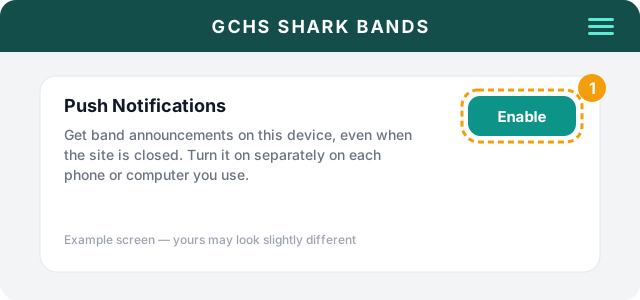
1. Open your Profile and click Enable
Sign in, open the menu, and choose Profile. Near the top you'll see the Push Notifications card. Click Enable.
-
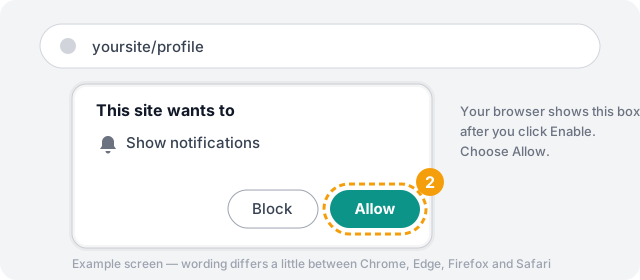
2. Choose Allow when your browser asks
A small box appears asking if this site may show notifications. Click Allow. If you click Block by accident, see Troubleshooting.
-
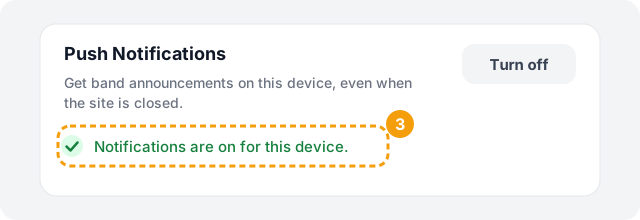
3. Check that it says notifications are on
The card now shows Notifications are on for this device. That's it. Do the same on each phone or computer you want to receive them.
On an iPhone or iPad
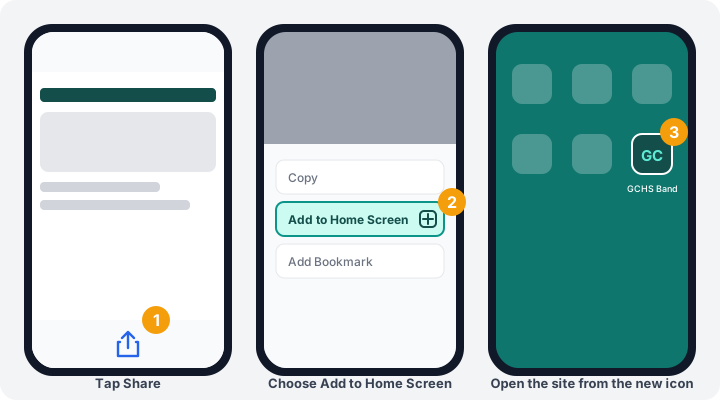
Apple only allows notifications from websites that have been added to your Home Screen. Do this first, then follow the steps above from the new icon. You need iOS or iPadOS 16.4 or newer, and you must use Safari for the first step.
- Open this website in Safari and sign in.
- Tap the Share button (the square with an arrow, at the bottom of the screen).
- Scroll down and tap Add to Home Screen, then tap Add.
- Close Safari and open the site from the new icon on your Home Screen. This matters — the option won't work from a normal Safari tab.
- From that icon, open Profile, tap Enable, and choose Allow.
What happens when one arrives
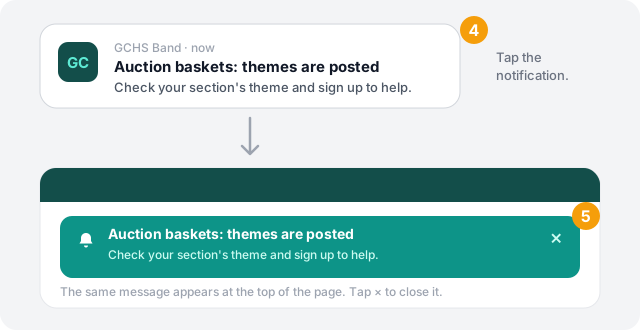
A notification pops up on your device. Tap it and the site opens, with the same message shown in a teal box at the top of the page. Tap the × to close the box.
Finding a notification you missed
Every notification sent to you is saved. Sign in, open your Dashboard, and choose the Notifications tab. This works even if you never turned on push notifications, and a teal number on the tab shows how many you haven't read yet.
Troubleshooting
Still stuck? Contact us and we'll help.