How to install the band website as an app
You can put the band website on your phone's home screen like an app. It opens in its own full-screen window with no browser address bar, and it's one tap away. There's nothing to download from an app store, it's free, and it takes about a minute.
Android phone or tablet
Use the Chrome browser. Samsung Internet works too, and has the same option in its menu.
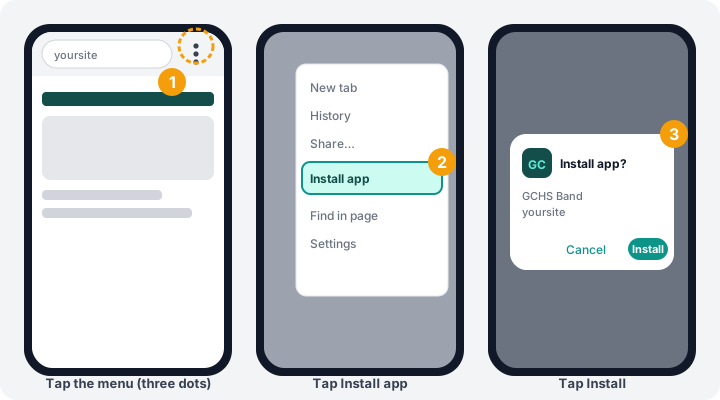
- Open the band website in Chrome.
- Tap the menu button (three dots) at the top right.
- Tap Install app. On some phones it says Add to Home screen.
- Tap Install to confirm.
- Find the GCHS Band icon on your home screen or in your app list, and open it from there.
Chrome may also show an Install banner by itself after you've visited a few times. You can use that instead.
iPhone or iPad
On Apple devices this only works from Safari. Chrome and other browsers on iPhone can't add the site to the Home Screen.
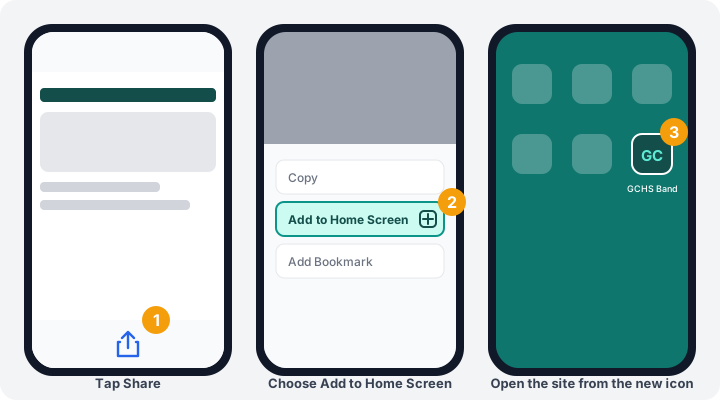
- Open the band website in Safari.
- Tap the Share button (the square with an arrow, at the bottom of the screen).
- Scroll down and tap Add to Home Screen.
- Tap Add in the top right corner.
- Open the site from the new GCHS Band icon on your Home Screen.
On iPhone, this is also required before you can turn on push notifications. See How to turn on push notifications.
Windows or Mac computer
This is optional, but it works in Chrome and Edge.
- Open the band website.
- Click the small Install icon at the right end of the address bar (a monitor with a down arrow). If you don't see it, open the browser menu and choose Install GCHS Band or Apps → Install this site as an app.
- Click Install.
What to expect
- It's the same band website in its own window, so you sign in the same way. Your login stays when you open it from the icon.
- It updates itself. There's nothing to update from an app store.
- You need an internet connection to load fresh pages.
- To remove it, press and hold the icon and choose Uninstall (Android) or Remove App (iPhone). You can always add it again.
Troubleshooting
Still stuck? Contact us and we'll help.